


Hướng dẫn nâng cấp màn hình hiển thị cụm không dây
Hướng dẫn Màn hình Cụm Không dây cho Android & iOS | Ikagoo
Android: Chiếu qua Wi-Fi + âm thanh Bluetooth (hỗ trợ định tuyến tách). iOS: Phản chiếu màn hình AirPlay (không có tách AV). Nên dùng chế độ ngang cho điều hướng.
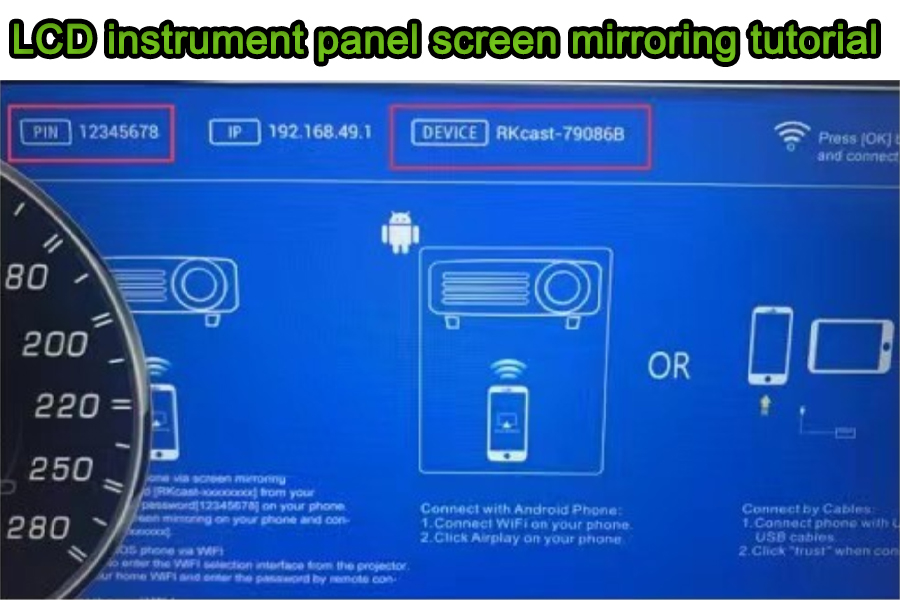
Tổng quan
Hướng dẫn này bao gồm những gì
Các bước thực tế, đã kiểm chứng thực địa để phản chiếu màn hình điện thoại lên cụm đồng hồ kỹ thuật số hỗ trợ Ikagoo. Trọng tâm: truyền video qua Wi-Fi, cùng với âm thanh Bluetooth trên Android ghép nối. iOS AirPlay phản chiếu video nhưng không tách đường âm thanh và video.
Lưu ý an toàn nhanh
Sử dụng bố cục ưu tiên điều hướng ở chế độ ngang. Tránh xem video chuyển động toàn màn hình khi lái xe. Luôn tuân thủ quy định địa phương về việc sử dụng màn hình trên xe.
Tìm Ikagoo cụm đồng hồ kỹ thuật số cho Audi & Volkswagen.
Tương thích thiết bị
| Hãng Điện Thoại / Tính Năng | Video lên Cụm Đồng Hồ | Âm thanh tới Màn Hình Chính | Ghi chú |
|---|---|---|---|
| Android (Huawei Projection / Cast) | Wi-Fi Cast | Bluetooth A2DP (điện thoại → đầu xe) | Hỗ trợ định tuyến tách (video qua Wi-Fi, âm thanh qua Bluetooth). |
| Android (Samsung Smart View / Cast) | Wi-Fi Cast | Bluetooth A2DP | Tên gọi khác nhau tùy theo model/phiên bản OS; các bước tương tự như Huawei. |
| iOS (Apple AirPlay) | AirPlay | Không tách AV | iOS không tách âm thanh/video khi phản chiếu màn hình. |
Android — Các bước chiếu không dây (Ví dụ Huawei)
- Mở Trung tâm điều khiển → Chiếu/Kết nối không dây trên điện thoại.
- Chờ quét thiết bị; thiết bị cụm sẽ xuất hiện trong danh sách.
- Chọn thiết bị cụm đồng hồ (tên tương tự hiển thị trên cụm đồng hồ). Để điều hướng toàn màn hình, tắt khóa xoay dọc và xoay điện thoại sang ngang.
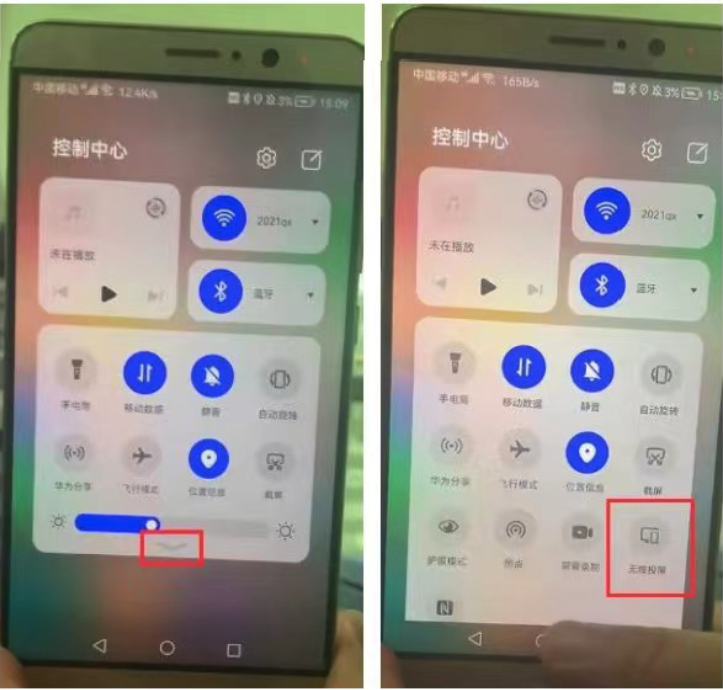
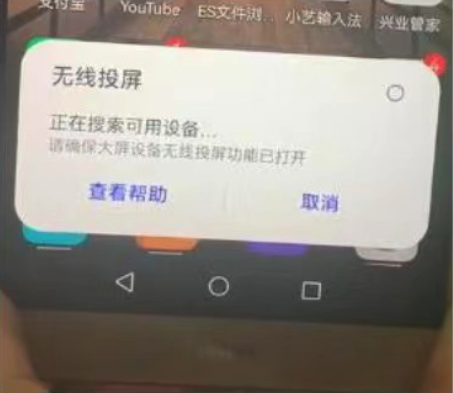
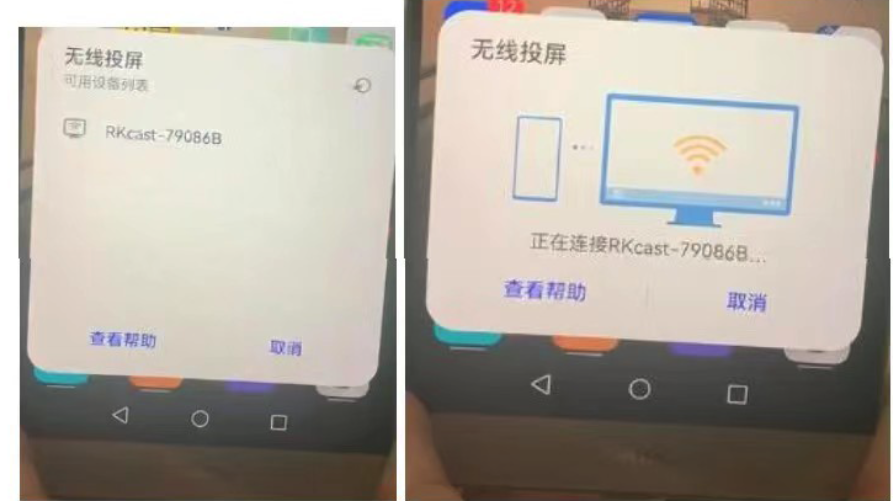
Nguồn chính thức: Android
iOS — Các bước phản chiếu màn hình AirPlay
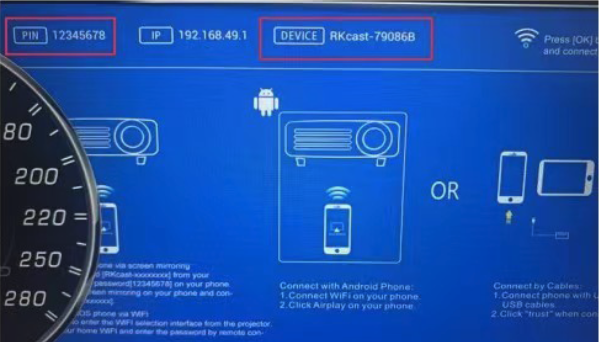
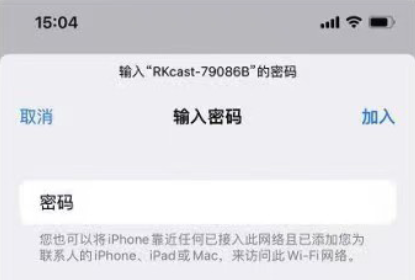
- Tìm SSID và mật khẩu trên cụm đồng hồ (trang Wi-Fi của cụm đồng hồ).
- Kết nối iPhone với Wi-Fi đó: Cài đặt → Wi-Fi → chọn SSID của cụm (mật khẩu ví dụ: 12345678).
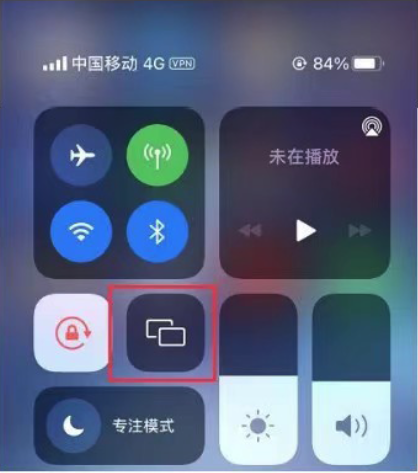
- Mở Trung tâm điều khiển → Phản chiếu màn hình và chạm vào tên thiết bị khớp với cụm. Để điều hướng toàn màn hình, tắt khóa xoay dọc và xoay sang ngang.
Nguồn chính thức: Apple AirPlay
Chiến lược định tuyến âm thanh/video
Android — Ưu tiên
- Video: Chiếu qua Wi-Fi đến cụm đồng hồ.
- Âm thanh: Bluetooth A2DP (điện thoại → đầu máy).
- Kết quả: Âm thanh ổn định và độ trễ video ở mức chấp nhận được cho điều hướng/ứng dụng.
Android — Dự phòng
- Video: Phát qua Wi-Fi.
- Âm thanh: 3.5mm AUX / USB audio (nếu đầu máy hỗ trợ).
- Sử dụng khi các cấu hình Bluetooth bị chặn bởi các thiết bị của công ty.
iOS — Thực dụng
- Video: AirPlay mirroring to cluster.
- Âm thanh: Same path as video by design (no split AV).
- For rich audio: consider head-unit CarPlay or Android device.
Latency & Quality Optimization
Hãy
- Mount the cluster/casting antenna unobstructed.
- Use ngang UI for nav; disable portrait lock.
- Close background streaming apps to reduce Wi-Fi contention.
- Keep phone within 1–2 m of the antenna line-of-sight.
Avoid
- Placing antennas behind metal frames or thick dashboards.
- Mirroring 4K video; prefer 720p/1080p for lower latency.
- Auto-rotate off (causes pillar-boxed vertical views).
Troubleshooting Checklist
- Device not found? Toggle phone Wi-Fi; reopen the cluster’s Wi-Fi page. Some phones cache scan results for ~10–20s.
- Mirrors but no audio (Android)? Forget & re-pair Bluetooth; ensure A2DP/Media Audio is enabled in device settings.
- Stuck in vertical? Disable portrait lock; rotate device before launching the nav app.
- Stutter/lag? Shorten distance; remove metal obstructions; close heavy background uploads (e.g., cloud backup).
- iOS audio path? AirPlay mirrors AV together; for separated audio, use CarPlay or switch to Android casting.
Câu hỏi thường gặp
Why is there no sound when casting?
Android: pair phone → head unit via Bluetooth (Media Audio on). iOS: AirPlay does not split audio/video; use a head unit input supported by iOS or switch to Android casting.
Can I watch videos on the cluster?
We recommend using navigation-centric layouts. Always follow local laws and drive attentively.
Cái này có hoạt động với Samsung không?
Có. Tên gọi có thể khác nhau (ví dụ: Smart View / Cast), nhưng các bước tương tự quy trình của Huawei.
Android Auto hoặc CarPlay có ảnh hưởng đến việc này không?
Chúng là các hệ thống riêng biệt. Truyền màn hình phản chiếu màn hình điện thoại của bạn; CarPlay/Android Auto chạy như các ứng dụng trên đầu phát với giao diện và luồng âm thanh riêng.
Độ phân giải nào được khuyến nghị?
1080p hoặc 720p thường mang lại sự cân bằng tốt nhất giữa độ rõ nét và độ trễ trong xe.
Tại sao màn hình của tôi không lấp đầy cụm đồng hồ?
Tắt khóa xoay dọc và xoay sang ngang trước khi khởi chạy ứng dụng. Một số ứng dụng yêu cầu khởi chạy lại sau khi xoay.
Làm thế nào để cải thiện độ ổn định?
Duy trì đường truyền thông suốt, giảm nhiễu RF, hạn chế truyền phát đồng thời và đảm bảo ăng-ten của cụm đồng hồ không bị kim loại chắn.
Việc này có làm mất hiệu lực bảo hành của tôi không?
Truyền màn hình không sửa đổi hệ thống dây điện của xe. Tham khảo điều khoản bảo hành sản phẩm Ikagoo của bạn để biết chi tiết phạm vi bảo hành.
Bảng thuật ngữ & Tuân thủ
| Thuật ngữ | Ý nghĩa |
|---|---|
| AirPlay | Giao thức không dây của Apple để phản chiếu màn hình/âm thanh; iOS không tách âm thanh/video khi phản chiếu. |
| Miracast / Cast | Các giao thức hiển thị không dây Android phổ biến được Huawei/Samsung sử dụng (tên gọi khác nhau tùy nhà cung cấp). |
| A2DP | Advanced Audio Distribution Profile dùng để truyền phát âm thanh stereo qua Bluetooth. |
| Tách AV | Gửi video qua Wi-Fi đến cụm đồng hồ trong khi định tuyến âm thanh đến đầu phát riêng biệt (Android hỗ trợ, phản chiếu iOS thì không). |








Add comment
Bạn phải đăng nhập để gửi bình luận.