Cách lắp đặt cụm đồng hồ kỹ thuật số Volkswagen Golf Mk7 / Mk7.5 (MQB 2014-2020)
Use this page only if the car is a Golf Mk7 / Mk7.5 MQB car with the original mechanical cluster. The point of this guide is to keep the real install route readable: confirm the analog baseline first, remove the trim in the correct order, complete the bench work without stressing the LCD, and test the cluster before the dashboard is fully closed again.
What matters here is not the model name by itself. What matters is whether the original cluster layout matches the supported analog-to-digital conversion route, and whether the install is checked properly before the trim goes back on.
Technical review note: this page was cross-checked against the current Golf Mk7 support route, video frames, and linked update path on May 26, 2026, then edited into English by YiFu. If the car already has prior dashboard trimming, aftermarket electronics, or cluster-related repair work, use this page as the standard route but re-confirm the original analog baseline before starting.
Need the correct Golf Mk7 / Mk7.5 digital cluster route before installation?
This article explains the install route. The actual buying decision still starts with the exact Ikagoo product page for the Golf Mk7 / Mk7.5 analog-cluster conversion path. If the customer also needs update-path or advanced support confirmation, handle that separately instead of assuming hardware fitment answers everything.
Before buying
Confirm that the car still uses the original analog cluster and send dashboard photos first.
During installation
Use the step-by-step video frames below to follow the actual removal and bench-transfer order.
After installation
Use the OEM-logic, final-check, and menu-control sections before daily road use.
Need support
Use the Ikagoo update page and the FixMyDash support page instead of guessing from generic forum advice.
Verified by Ikagoo Technical Support Team
Ikagoo focuses on original-style digital instrument clusters, Android screen upgrades, and model-specific retrofit guidance. This page was built from the Golf Mk7 install material and checked against the installation logic used across our Tiguan, Passat B8, Lavida, and Audi cluster pages.
Who This Golf Guide Is For
Correct route
This page is for the Volkswagen Golf Mk7 / Mk7.5 (MQB 2014-2020) when the original dashboard still uses the mechanical analog cluster.
Supported variants
This route covers compatible R-Line, GTI, GTE, and R variants, and it supports LHD and RHD vehicles, including compatible diesel and hybrid versions.
What this is not
This is not a universal route for every Golf by name alone, and it is not the same route for a vehicle that already uses a factory digital cockpit. The original cluster architecture still decides the correct buying path.
What Ikagoo Technical Support Confirms About This Route
Phạm vi lắp đặt
- Remove only the instrument cluster section.
- No drilling.
- No wire cutting.
- No ECU flashing or coding in the standard install path.
- No modification of original vehicle data.
Hardware positioning
- Linux-based cluster platform.
- Quoted 3-second boot behavior.
- 12.3-inch 1920 × 720 BOE display panel.
- Built-in multilingual UI and unit settings.
- Original vehicle warnings, reminders, and data display are part of the route positioning.
Why Ikagoo Defines the Golf Route So Strictly
Ikagoo does not treat every Golf dashboard as the same route. On the Golf Mk7 / Mk7.5 platform, the original cluster type still decides the install path. That is why the correct pre-sale rule remains simple: send clear photos of the original cluster and dashboard before payment instead of guessing from trim names.
In real support cases, the fastest way to avoid a wrong order is to capture the original cluster face, the full dashboard, and any existing retrofit hardware before purchase. That gives Ikagoo support enough evidence to confirm whether the car is a normal analog-cluster conversion, a prior-modified car, or a case that needs extra review before installation starts.
Best practice before ordering: if the customer also wants function support beyond the physical cluster install, such as update-path confirmation, display-route confirmation, or upgrade-package support, route them to the Volkswagen / Audi Digital Cluster Upgrade Package on FixMyDash.
Installation Safety Rules That Matter on This Golf Route
Static and PCB handling
Static damage is a real risk here. Before touching the internal boards, discharge body static first. Hold the PCB by the edges only, and never put fingers directly on the electronic components.
Do not remove the original buzzer
The original cluster buzzer or speaker must remain in place. The support notes warn that removing it can trigger a combination-instrument fault after installation.
Do not press on the LCD surface
The BOE LCD panel is not a hard plastic trim cover. During reassembly, hold the outer structure and never push on the screen face to force alignment. This is one of the most common avoidable damage routes on digital cluster installs.
Analog baseline only
If the car already has a factory digital cockpit, stop there and re-confirm the route. This page is for the analog-cluster conversion path only.
Bench-transfer checks before closure
Before the upgraded housing is closed, verify the board path lies flat, the original buzzer stays in place, no ribbon is trapped under the shell, and every clip closes evenly without pressure on the LCD face.
First-power checks before trim goes back on
Confirm warning lights, startup behavior, steering-wheel response, menu control, fuel and temperature data, and whether the cluster reports normal vehicle information before you refit the surrounding trim.
How the Golf Mk7 / Mk7.5 Installation Should Be Explained
Confirm the original analog-cluster baseline first
Before disassembly, confirm that the car really matches the MQB Golf route and still uses the original mechanical needle cluster. If not, stop before the trim comes apart.
Protect the trim and open the cluster area carefully
Use non-metal trim tools and release the cluster trim step by step. On this route, cosmetic damage usually happens during rushed trim removal, not during the cluster electronics stage.
Remove the original cluster and move to bench work
The physical cluster comes out of the car before any internal transfer work starts. Keep the work area clean, keep the screws organized, and do not mix trim work with bench work.
Discharge static before touching the internal boards
Release body static first, then hold the PCB by the edges. This is not optional on a digital cluster route that depends on stable board transfer and clean signal integrity.
Transfer the required original-board components correctly
This is the part of the job where the route either stays clean or starts creating faults. The original-board elements have to go back into the new housing correctly, not approximately.
Keep the original buzzer path intact
Do not remove or lose the original cluster buzzer. This is a retain-or-fault rule, not a cosmetic preference.
Reassemble the digital cluster without pressing the screen
Seat the housing evenly and support the outer frame instead of pushing on the panel face.
Return the cluster to the car and test before final closure
Check first boot, menu response, warning indicators, steering-wheel control logic, and final fitment before calling the job complete.
Step-by-Step Golf Mk7 / Mk7.5 Installation Tutorial From the Real Support Video
This section turns the real Golf Mk7 installation video into a slower, image-based tutorial. The goal is to show the exact physical order: dashboard opening first, cluster removal second, bench transfer third, and reassembly plus first-boot checking last. For buyers and after-sales customers, this is the clearest way to understand what actually happens before starting the job.
1. Confirm the original analog-cluster baseline before touching the dashboard
The route starts from the original mechanical cluster layout. This article is not for cars that already came with a factory digital cockpit.
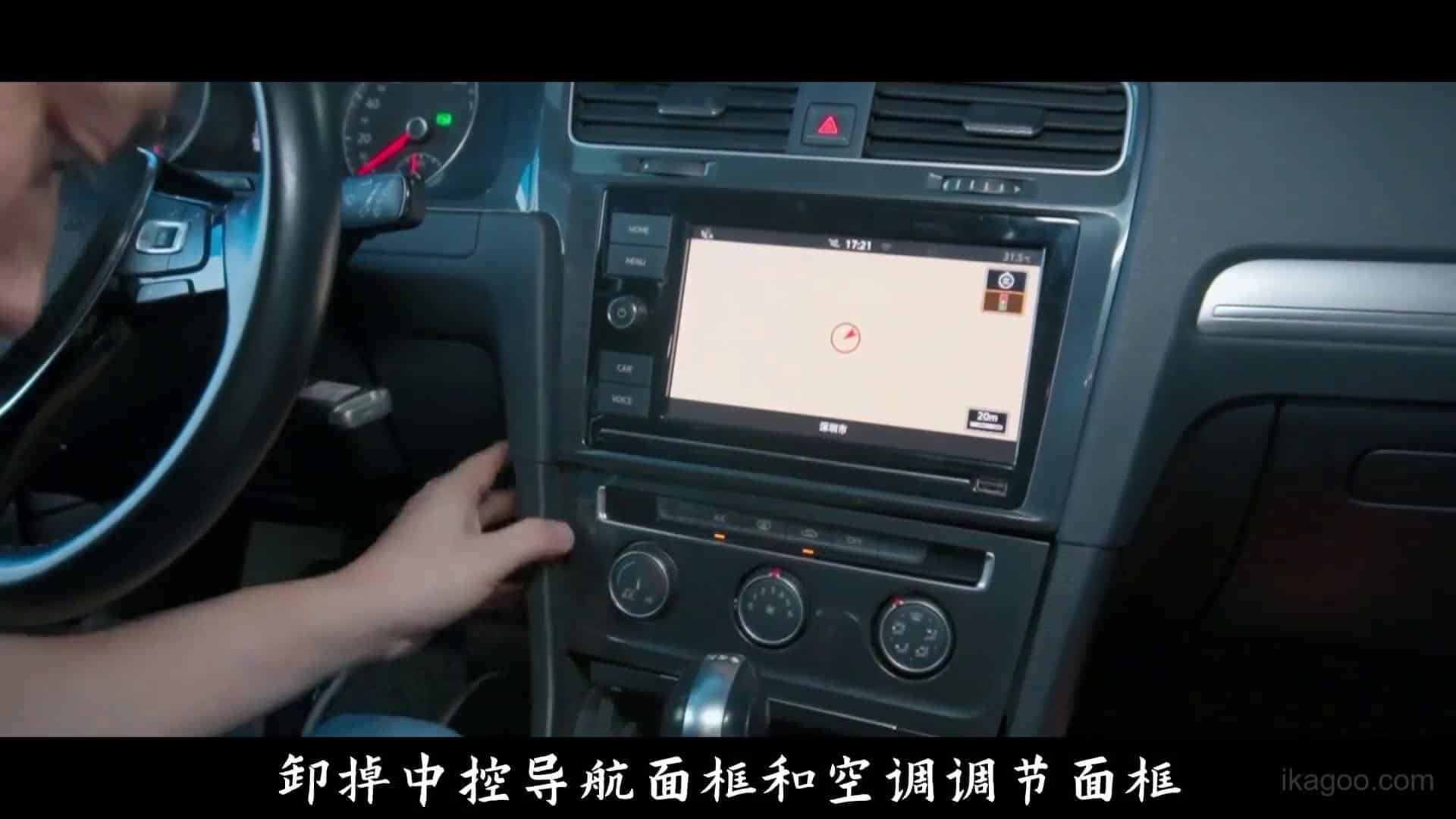
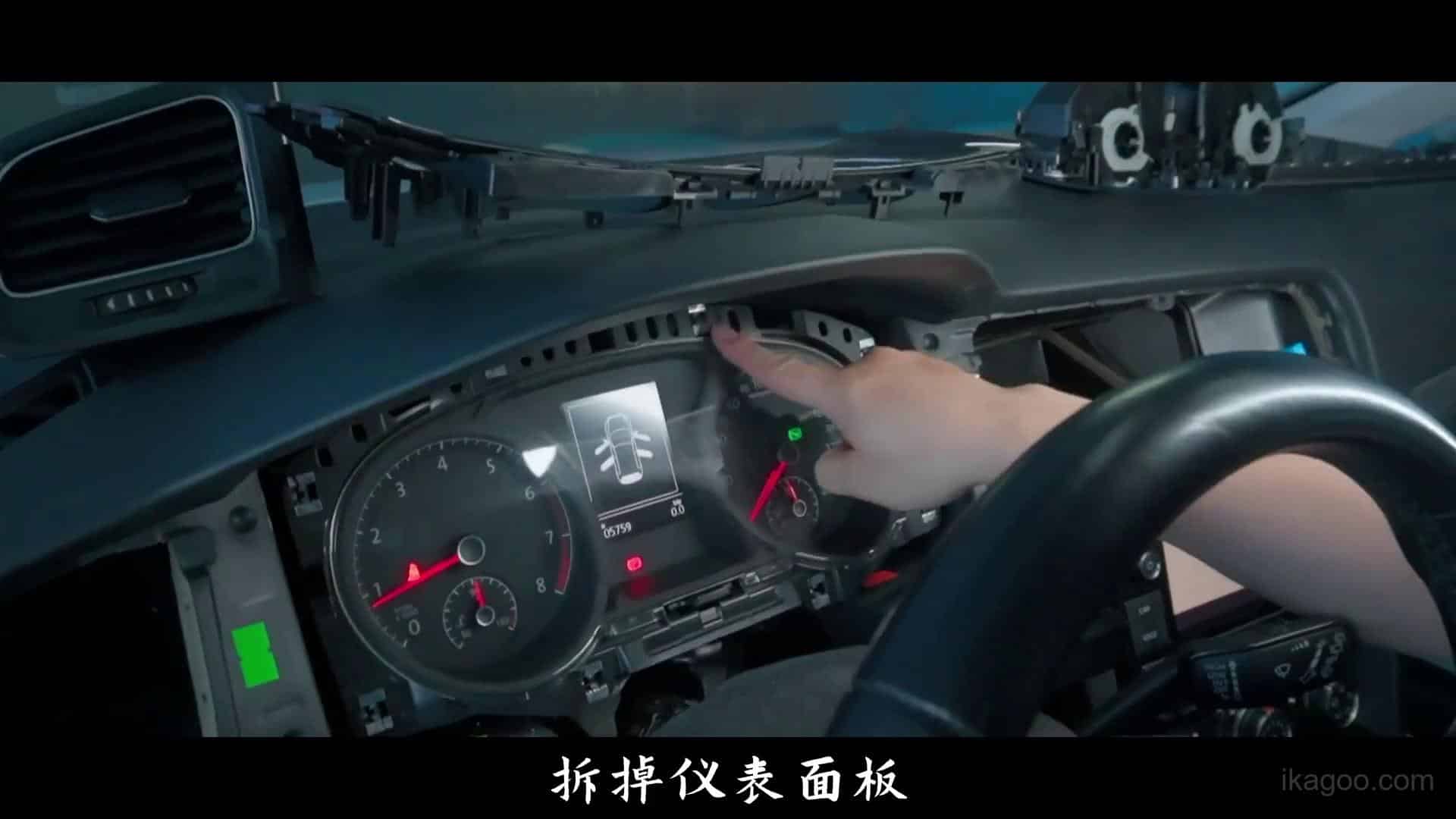
2. Start opening the center trim path beside the cluster area
The video first shows the surrounding trim being released progressively. Use non-metal trim tools and avoid lifting only one corner too aggressively.
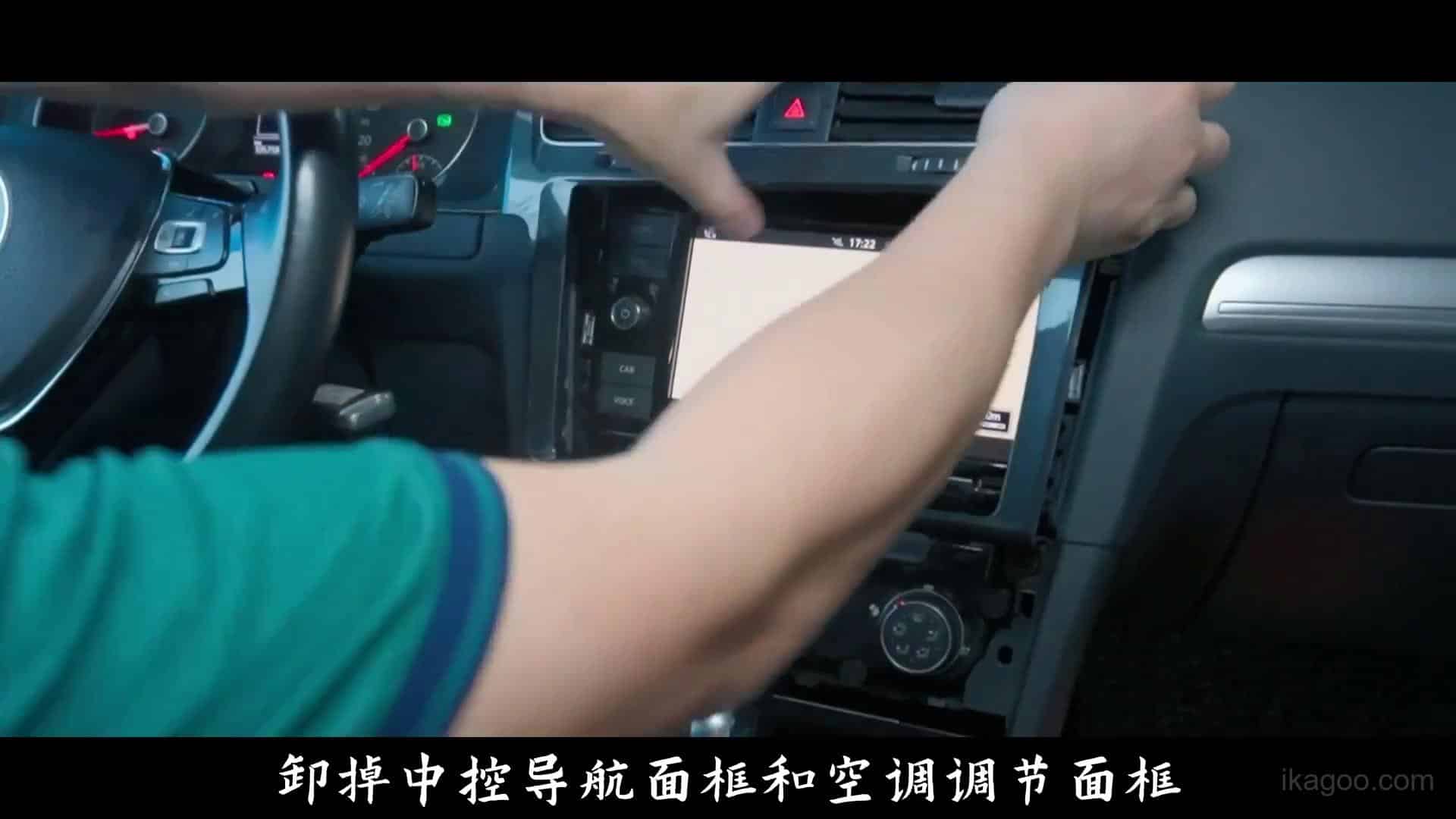
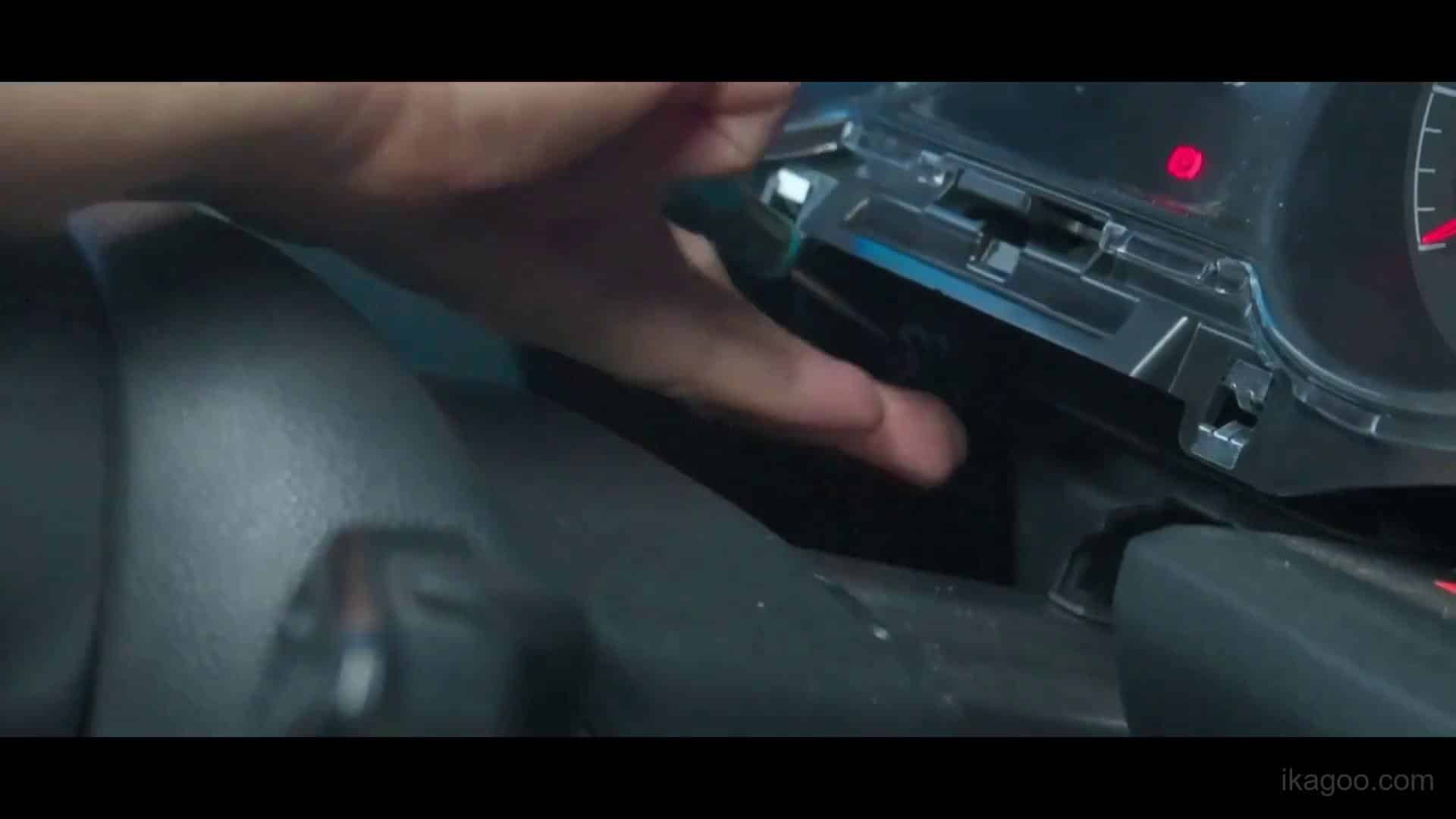
3. Continue releasing the trim so the cluster-side path is free
This is still part of the dashboard opening stage. Do not rush here, because scratched trim and broken clips usually happen before the cluster is even removed.
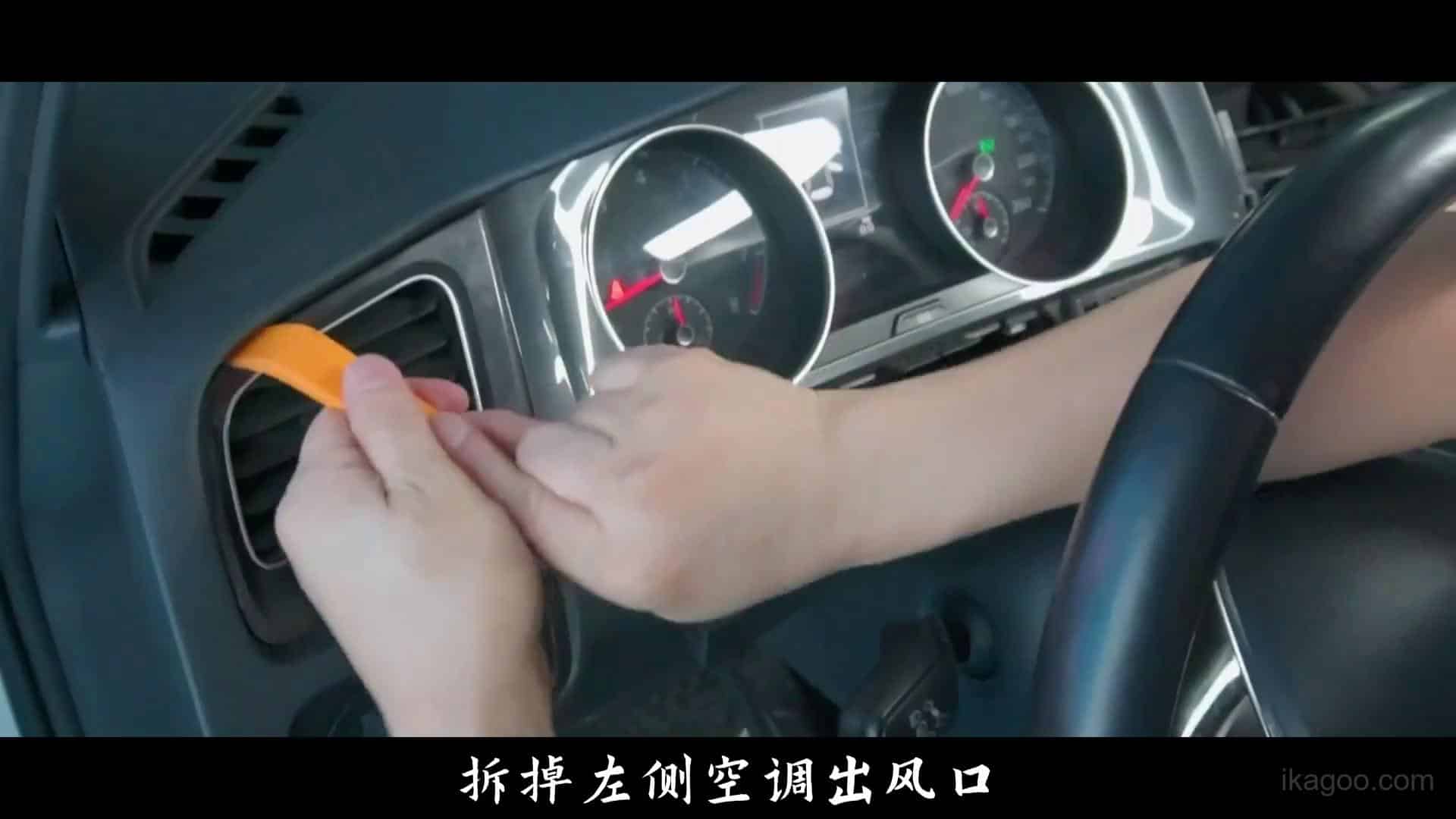
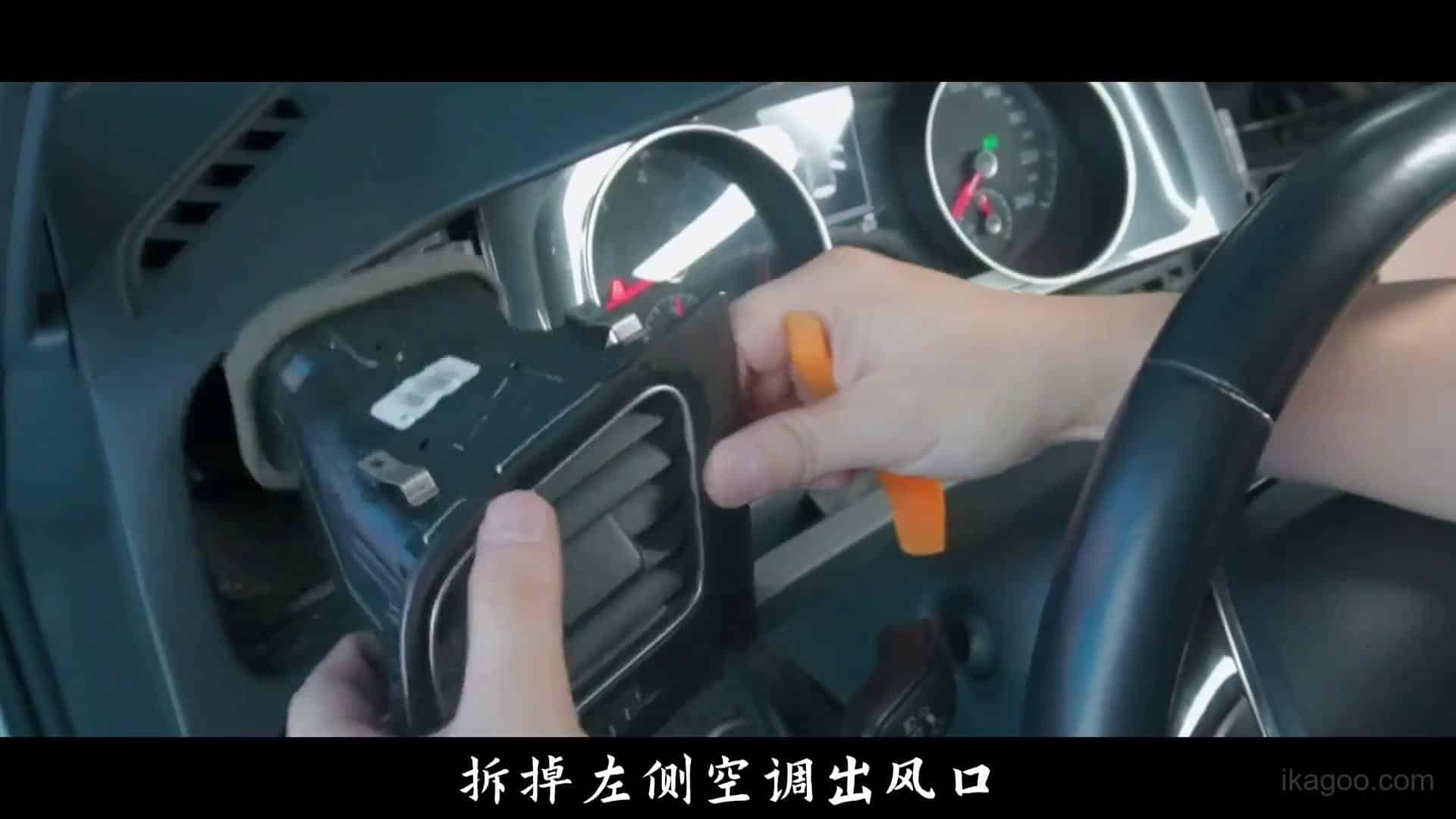
4. Remove the side vent trim cleanly and keep the clip path controlled
The video shows the vent area fully opening up. This is how the job should look before the cluster is pulled forward. If the bezel is still blocked, do not force it out.
5. Release the upper cluster surround and dashboard hood section
Once the side trim is out, the cluster surround can be opened further. Keep pressure on the outer trim, not on the clear lens or the future LCD area.
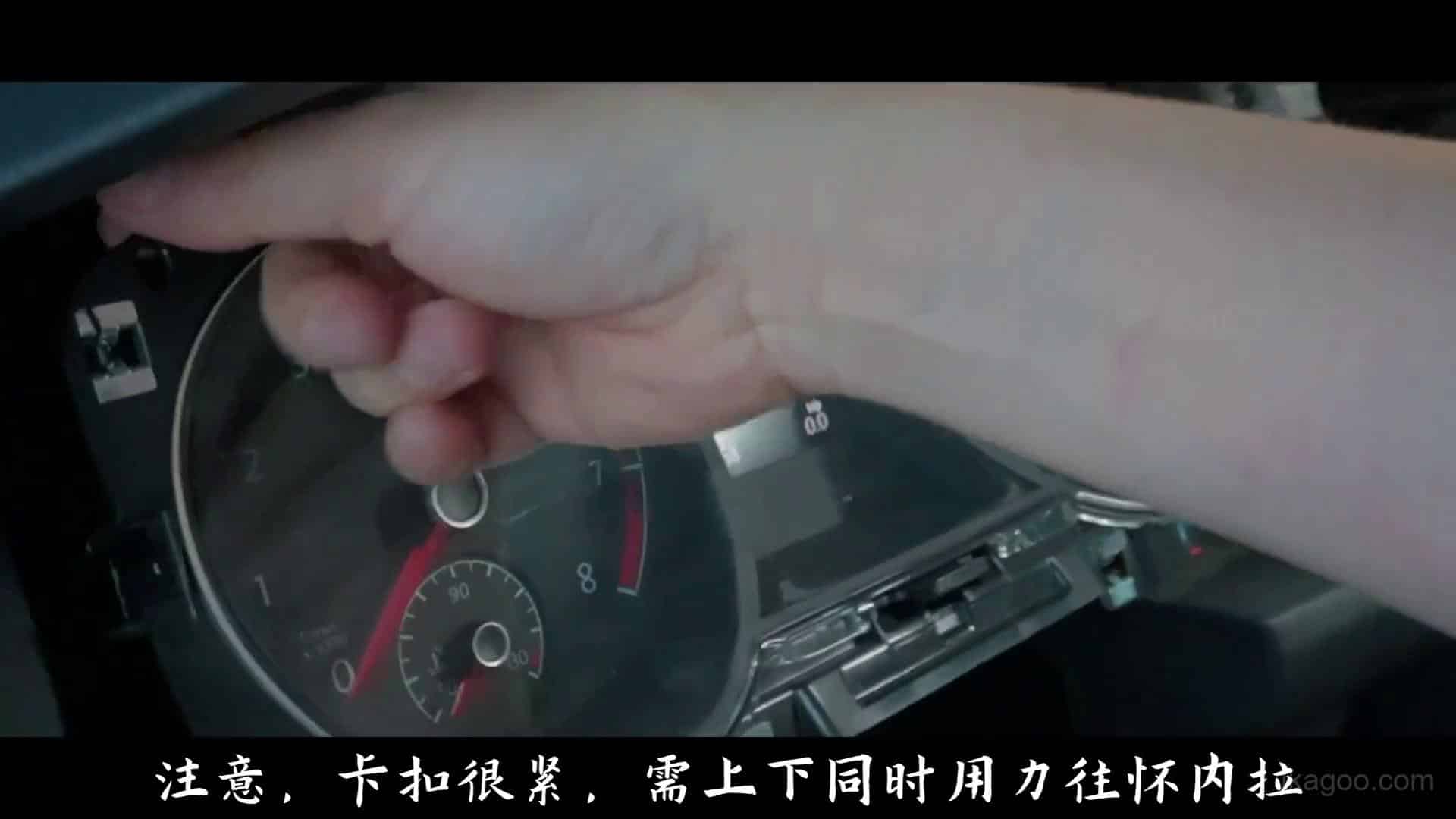
6. Pull the original cluster forward from the dashboard opening
The cluster can now be brought out of the dash. This is the hand-off point between in-car removal and the more delicate bench-transfer work.
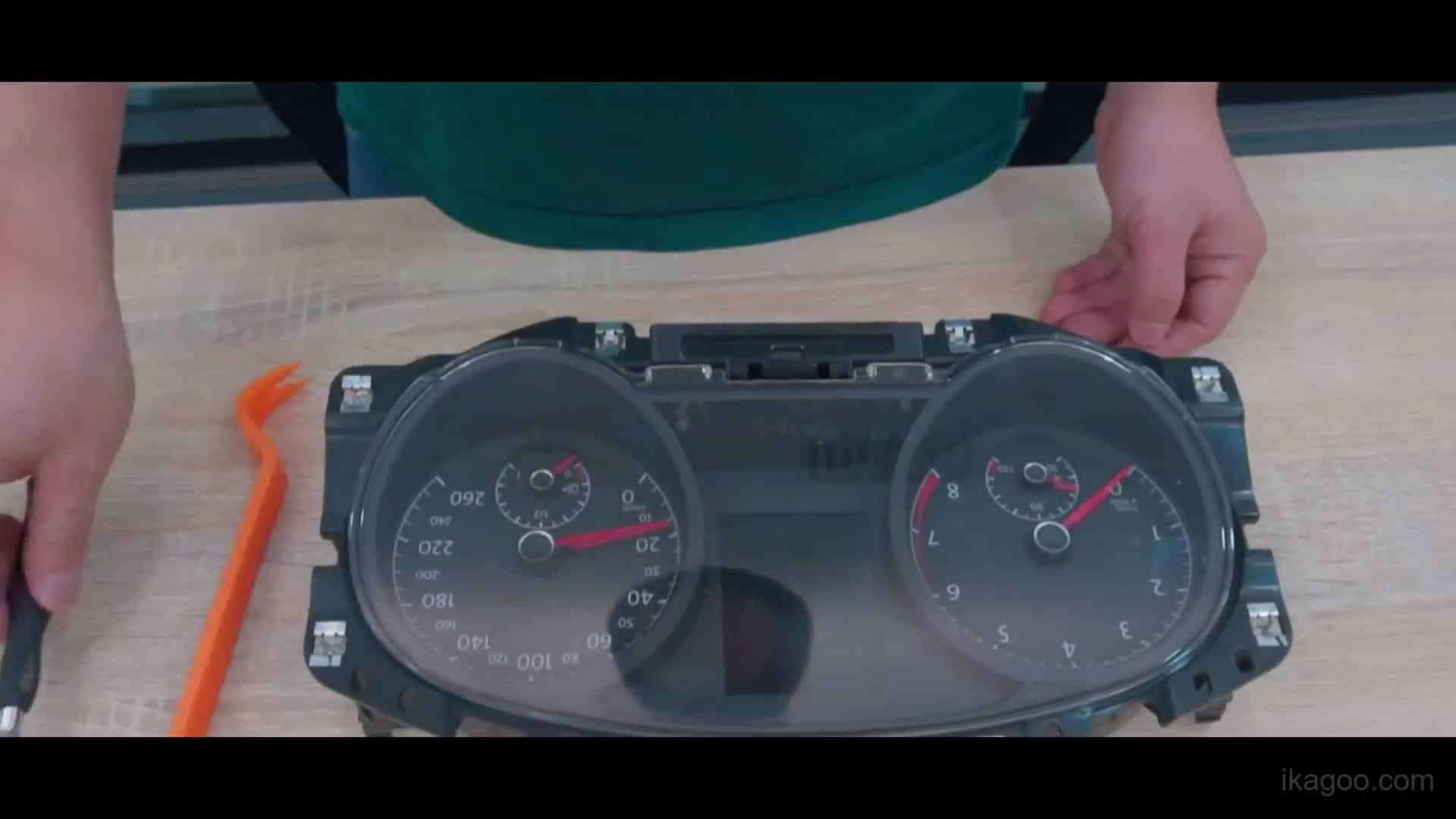
7. Move the original cluster to a clean bench before opening the housing
The internal conversion should not be done while the unit is hanging in the dash. Use a clean, static-safe work surface and keep small parts organized.
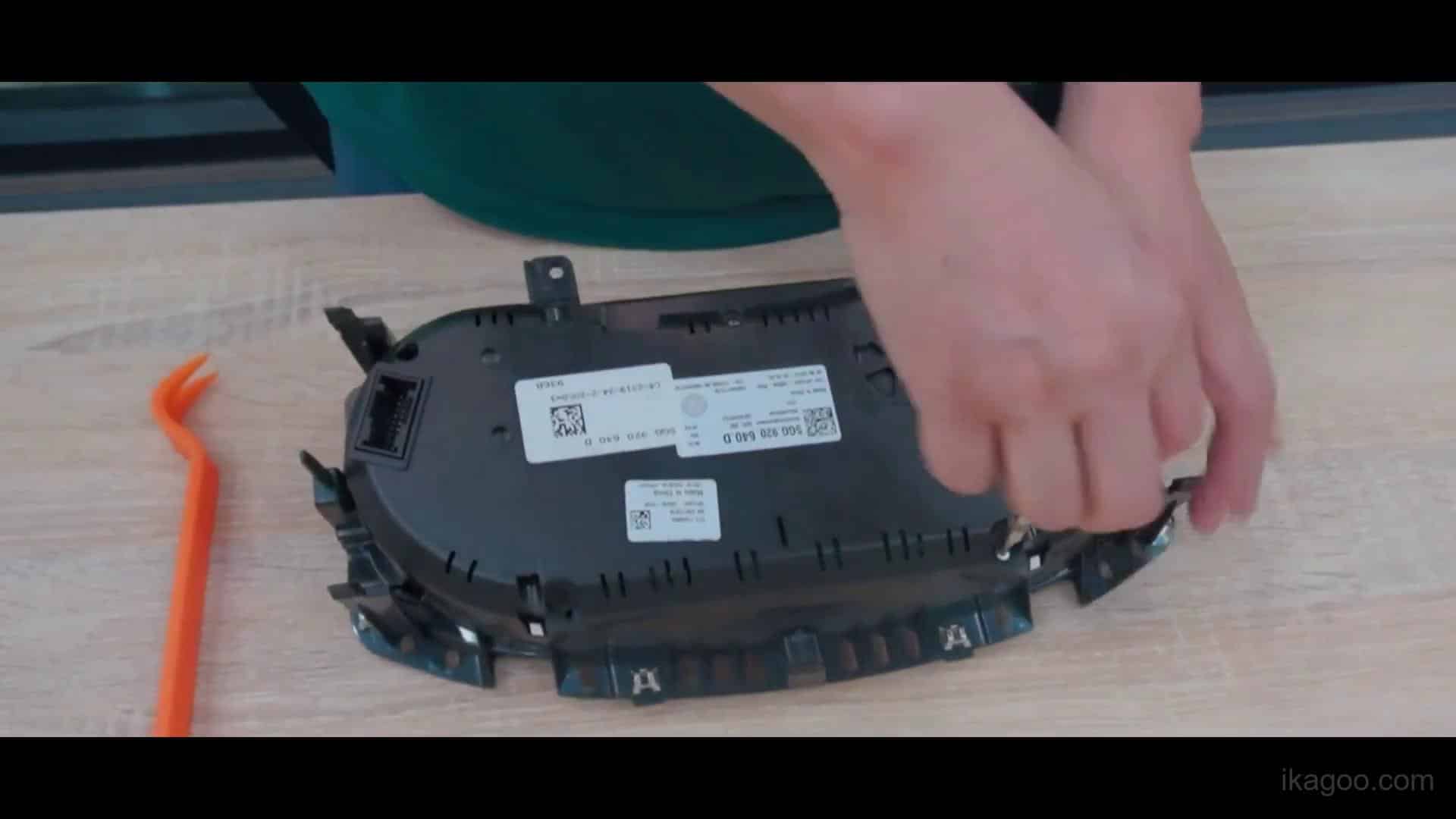
8. Begin opening the front trim and decorative frame on the bench
At this stage the work changes from trim removal to cluster disassembly. Hold the housing by the frame edges and discharge static before touching internal electronics.
9. Keep releasing the front trim without stressing the internal display area
The front panel is separated further here. This is where rough pressure can crack trim tabs or create avoidable marks on visible surfaces.
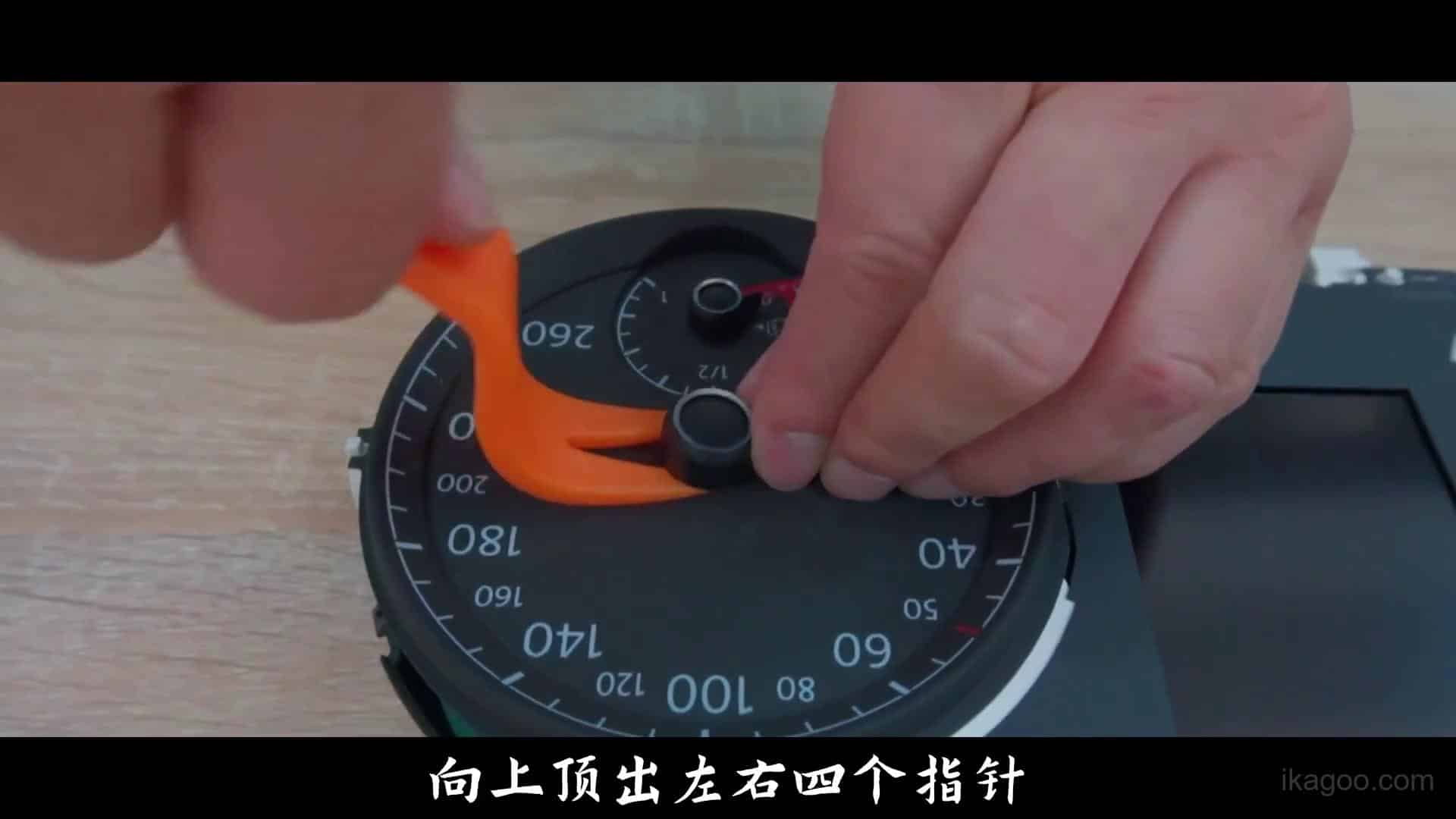
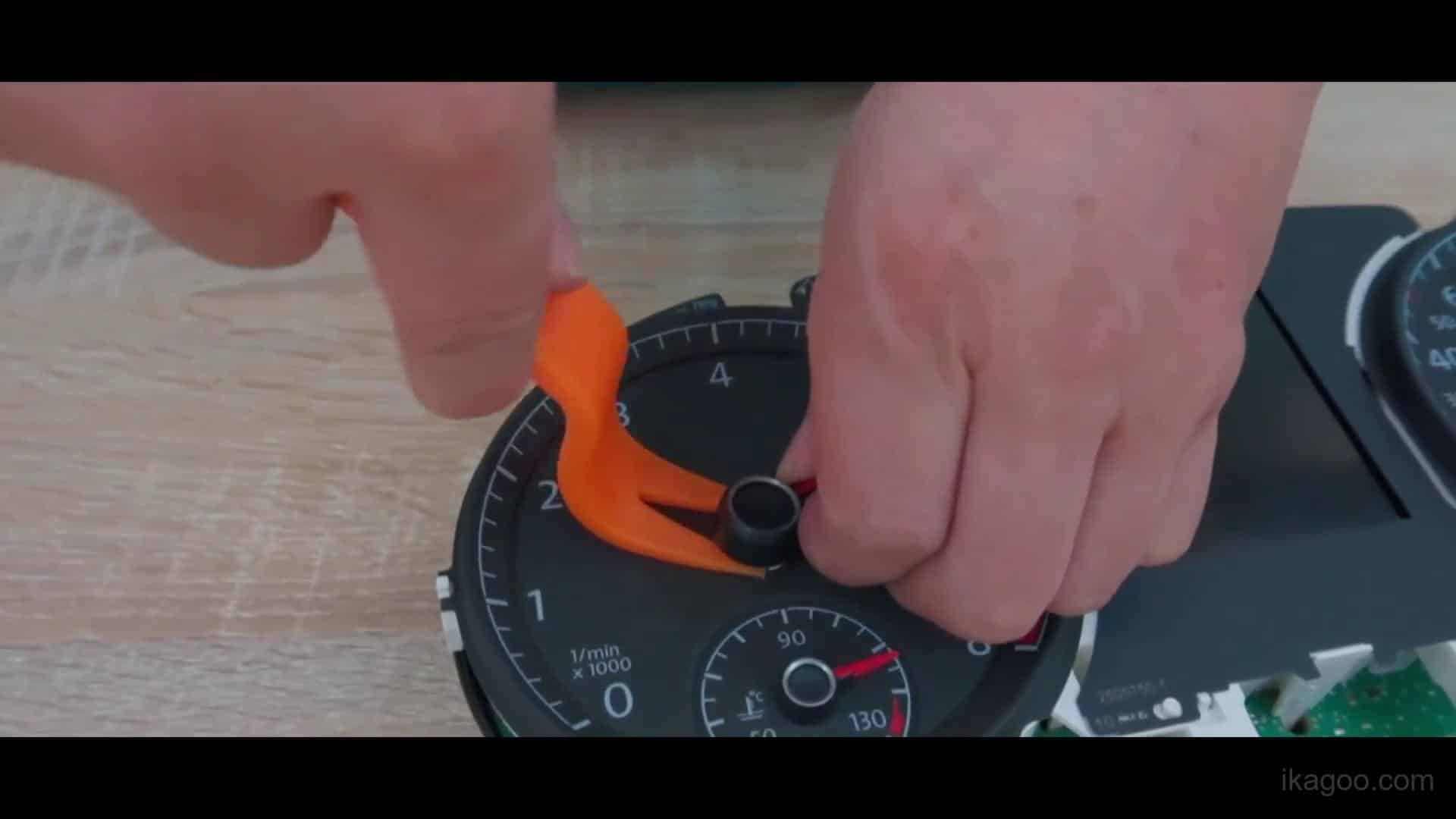
10. Remove the original needles carefully and keep their position controlled
The video confirms the route involves a proper bench transfer, not a simple outer shell swap. Needle removal should be even and controlled, without twisting the shafts violently.
11. Finish the needle-removal stage and protect the internal gauge hardware
Once the needles are off, keep the work area stable and avoid accidental bumps. Small mechanical parts and panel surfaces should remain clean before the transfer continues.
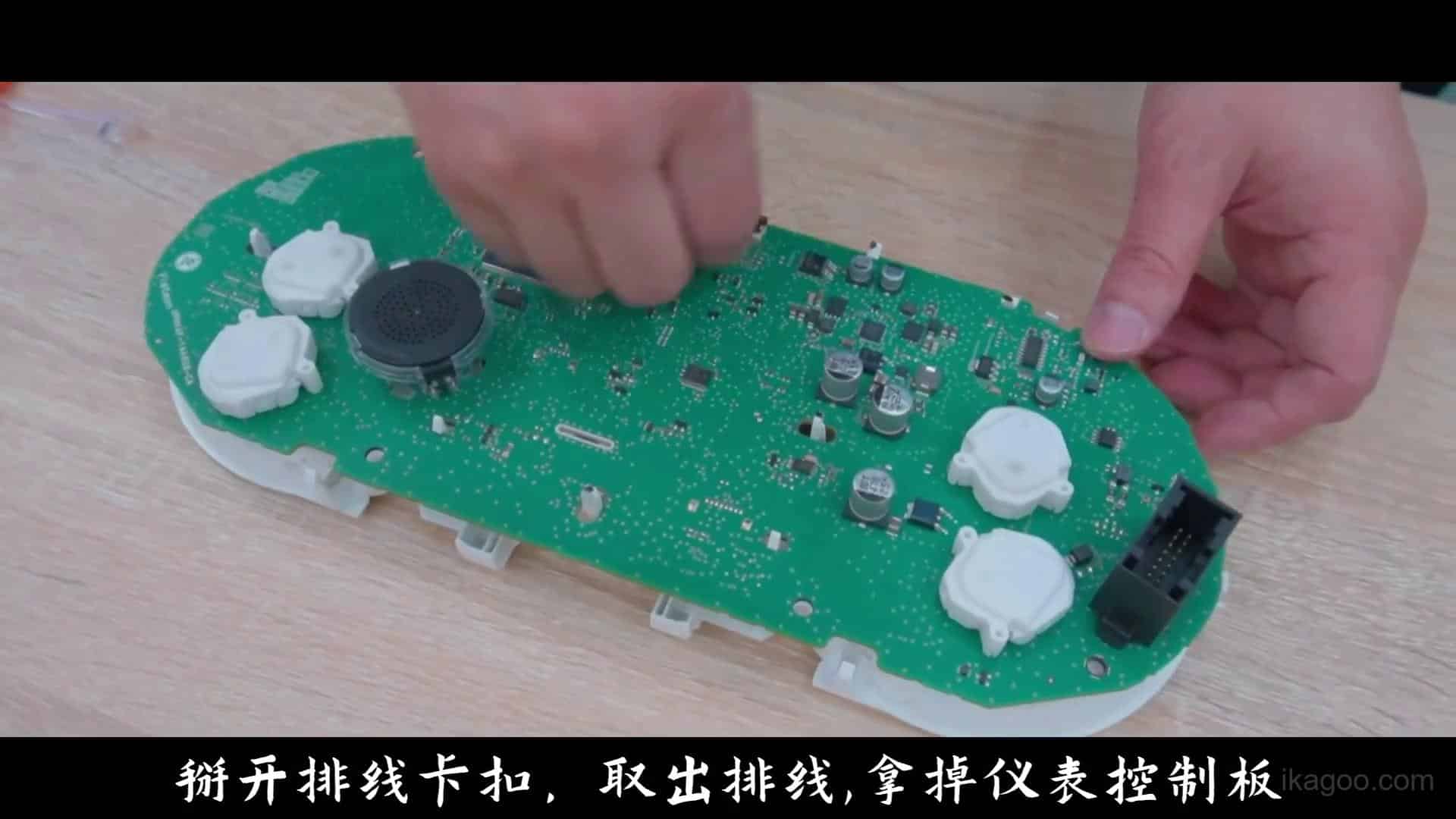
12. Disconnect the ribbon and board path by holding the PCB edges only
This is one of the most sensitive stages in the whole route. The Ikagoo support logic is explicit: discharge static, avoid touching components directly, and handle the board by the edges.
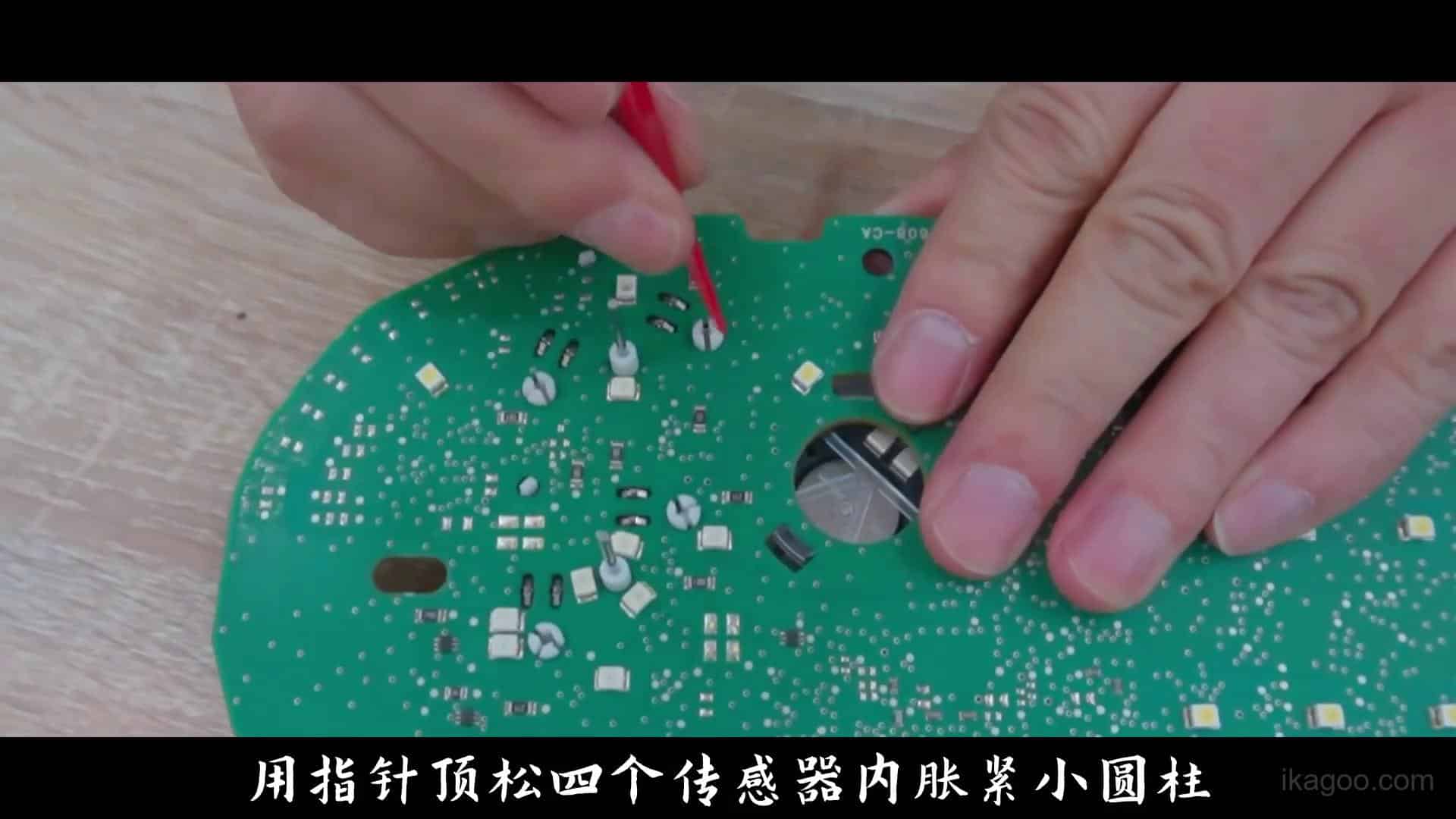
13. Release the internal retaining posts and keep the original buzzer path intact
The original buzzer must stay in the correct route. Losing or omitting that part can lead to a combination-instrument fault path after installation.
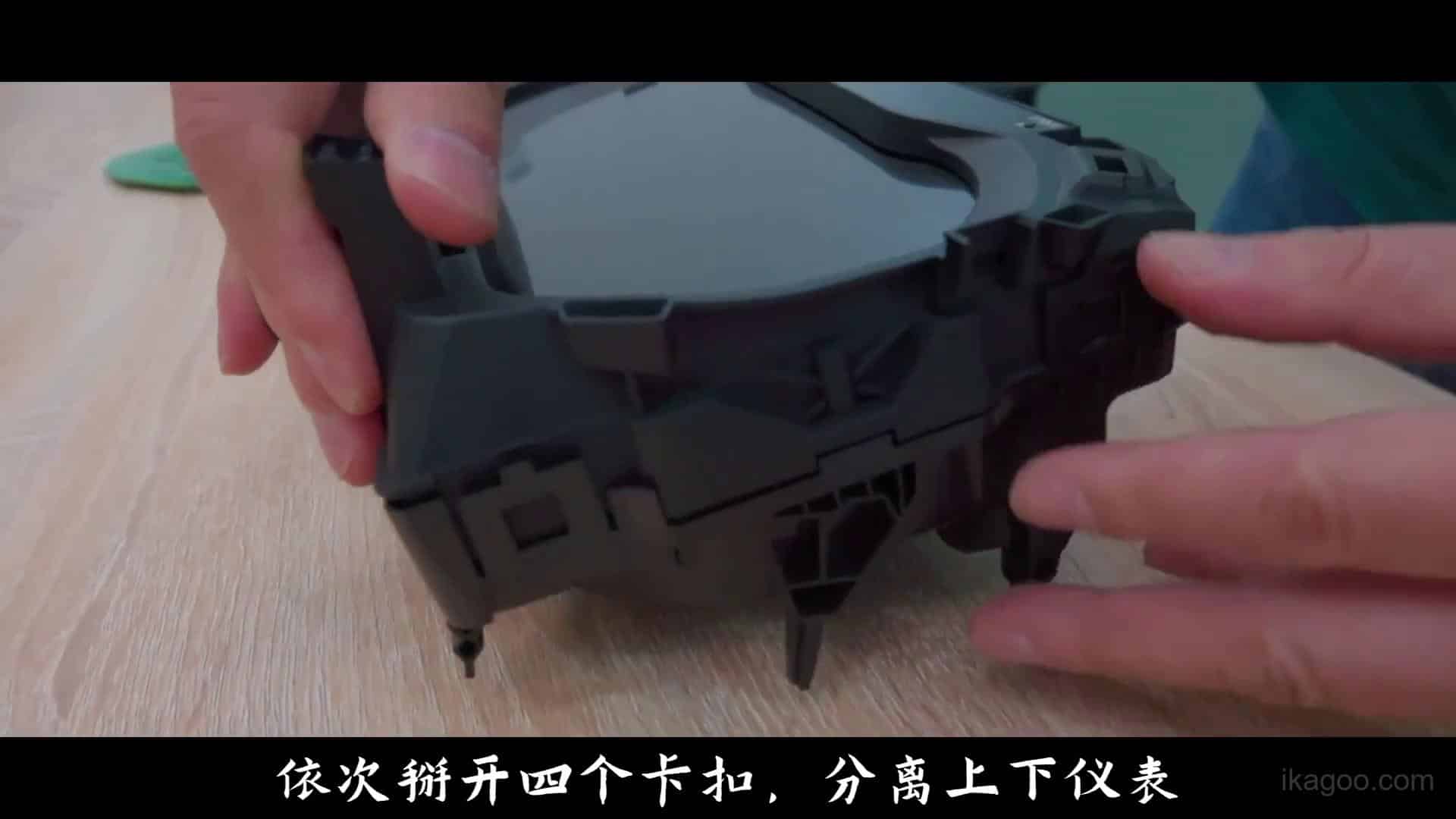
14. Separate the housing sections fully before the upgraded cluster is closed back up
The housing is now clearly apart. This is the point where the job stops being trim removal and becomes a real internal conversion.
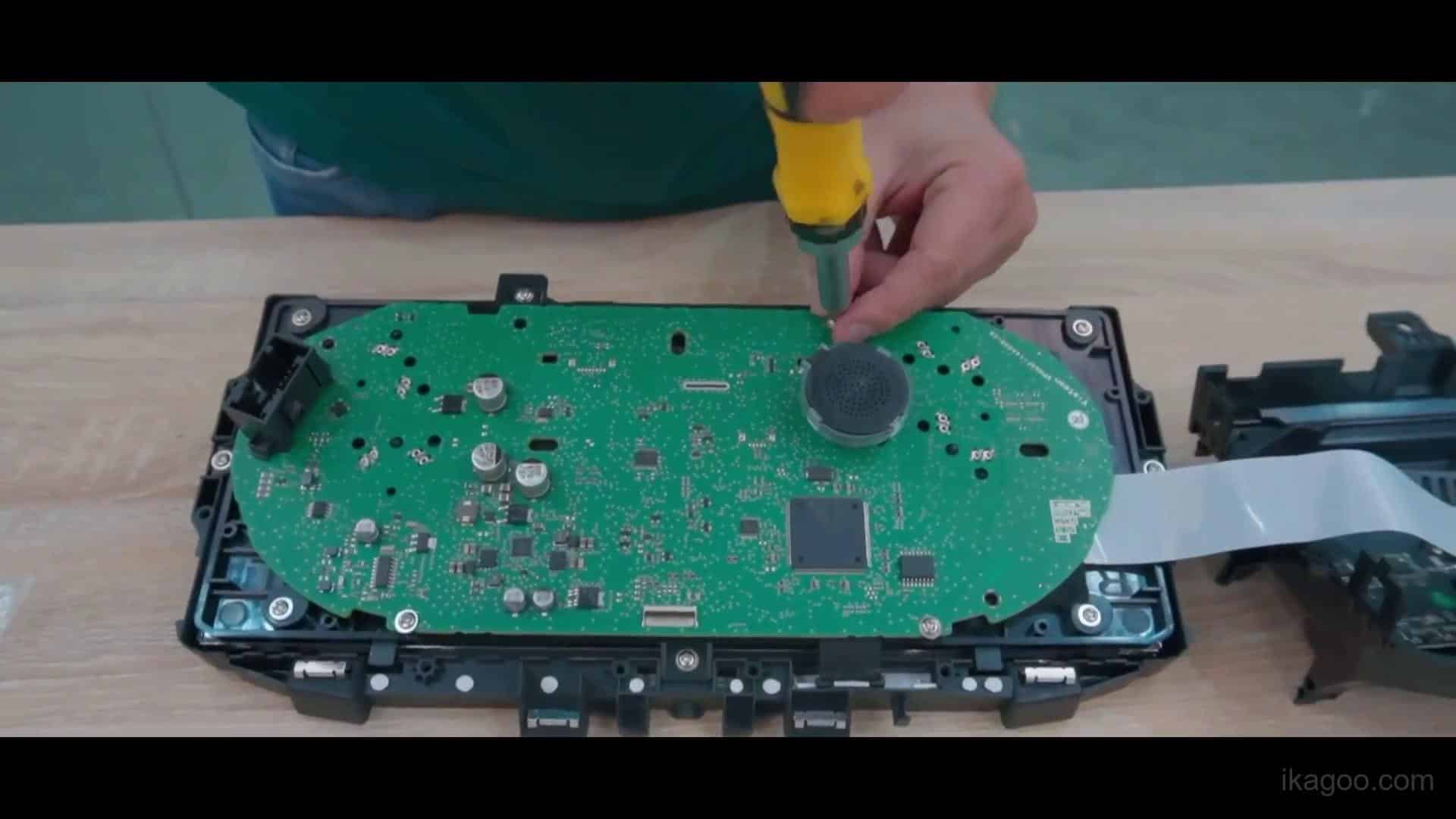
15. Fix the internal board correctly and close the cluster housing evenly
The internal board and fastener points need to sit flat before the housing is closed. Tighten them evenly and do not trap cables or press across the LCD area.
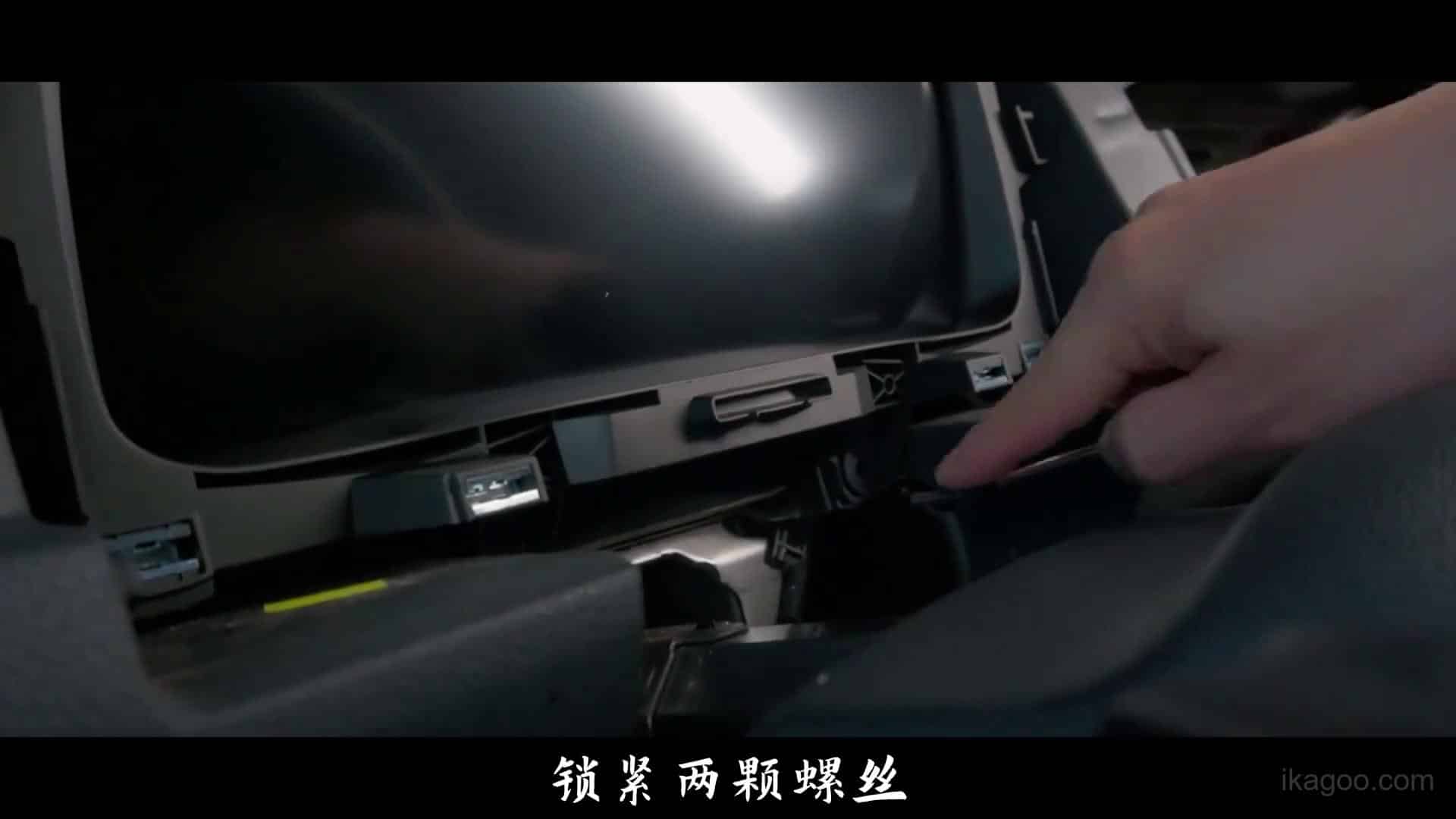
16. Reconnect the harness, lock the dash trim back in place, and complete the first-boot check
Reconnect the wiring, reinstall the cluster into the dashboard, tighten the final trim screws, and confirm first boot, warning indicators, steering-wheel controls, and general display behavior before daily use.
What Functions Exist After Installation
Built-in cluster functions
The cluster supports multilingual UI, unit settings, drive-mode-related settings, warning-lamp display, reminders, original vehicle data display, and OTA support on supported versions.
Phone and display routes are version-dependent
Built-in C33, external wireless box routes, phone mirroring, center-screen projection into the cluster, USB updates, and online updates are separate functions. They should not be treated as one universal method.
How to preserve the original OEM logic after the cluster is installed
Warning lights and safety prompts
The Golf Mk7 / Mk7.5 install should preserve body-fault visibility and warning behavior. After installation, verify every warning lamp and prompt instead of treating a normal boot screen as proof that the whole job is finished correctly.
Steering wheel and settings logic
This conversion is supposed to retain steering wheel control support, multilingual settings, unit settings, and the menu logic shipped with the cluster version. Check those before the trim is fully closed.
Vehicle data display integrity
The correct result is not just a bright screen. Fuel, speed, warnings, reminders, and original vehicle data should display correctly according to the supported Golf route.
What to verify after installation
Vehicle-side checks
- All warning lights display correctly.
- Original vehicle data appears correctly.
- Steering wheel controls respond correctly.
- Language, units, and core cluster settings can be entered normally.
System-side checks
- Boot behavior is normal and stable.
- No abnormal lines, dead zones, or pressure marks appear on the panel.
- Any shipped phone-display or mirroring path behaves as expected for that version only.
- If the shipped version later needs maintenance, use the Ikagoo update guide.
Final checks after installation
After the physical installation is complete, the Volkswagen Golf Mk7 / Mk7.5 digital cluster should be checked before daily driving. This includes menu operation, display behavior, warning-indicator visibility, internal-board installation, brightness behavior, final dashboard fitment, and any supported phone-display route belonging to the shipped version.
The standard installation path is non-destructive and does not require drilling, wire cutting, or manual modification of original vehicle mileage data. The correct target is clean OEM-style fitment, correct data display, and stable daily use.
Stop and re-check before road use if any display fault, warning-light abnormality, menu freeze, or connector issue appears. The cluster should boot cleanly, show the right vehicle information, and sit flush in the dashboard before the car goes back into normal use.
How to control the cluster menus after installation
Before running through the post-install settings, review these control-reference images first. They show the standard Ikagoo menu logic used on this family of supported VW / Audi Linux clusters: how to enter the main menu, move through sub-menus, and confirm settings during post-install setup. The driving mileage remains based on the original vehicle mileage and cannot be modified through this cluster.
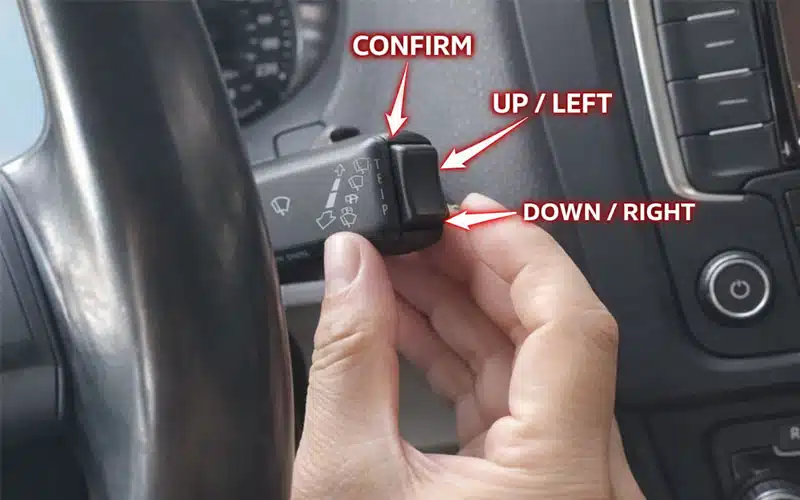
Control reference image 01
Use the steering-column control to move up or left, down or right, and confirm the selected function. This is the quickest way to verify that the installed Golf cluster is responding properly to the original vehicle controls.
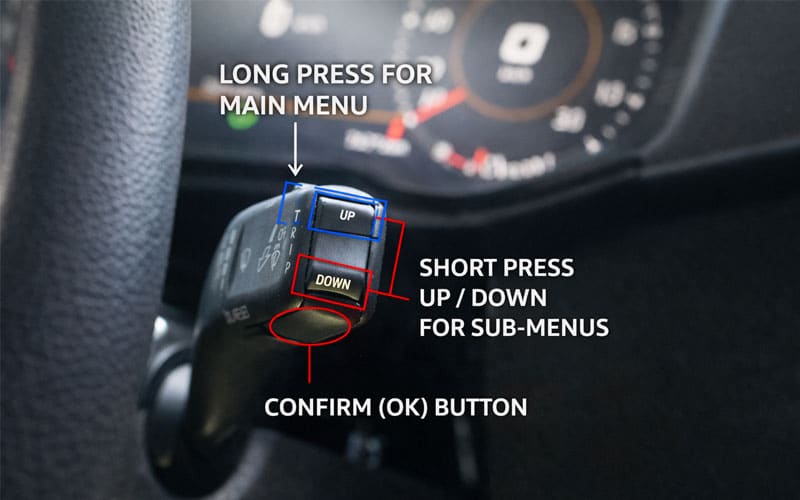
Control reference image 02
Long press to enter the main menu. Use short presses for up-and-down navigation through sub-menus, then confirm with the OK button. If this logic does not respond correctly after installation, re-check the Golf cluster installation before road use.
Additional Ikagoo reference videos for post-install setup
These supplemental videos come from Ikagoo's wider digital-cluster knowledge base. They help installers verify menu behavior, auxiliary-board handling, calibration checks, and display-light logic after the Golf Mk7 / Mk7.5 cluster is installed. They support the main Golf guide above and should be treated as post-install references rather than the physical dashboard removal guide itself.
Play
Reference Video 01: Warning and Menu Setting Check
Điểm tham chiếu:
- 01:24 - tham khảo thao tác cài đặt cảnh báo
- Use after the Golf cluster boots normally and menu logic is live.
Play
Reference Video 02: Auxiliary Board Transfer Check
Điểm tham chiếu:
- 02:43 - tham khảo lắp đặt bo mạch phụ trợ nhỏ
- Useful when checking Golf internal-board positioning against the bench-transfer stage.
Play
Reference Video 03: Calibration and Data Check
Sử dụng khe này cho:
- Hiệu chỉnh mức nhiên liệu
- Driving-data correction reference
- Any post-install parameter adjustment check
Play
Reference Video 04: Physical Light and Indicator Check
Sử dụng khe này cho:
- Cài đặt công tắc đèn vật lý
- Hiệu chỉnh đèn báo
- Kiểm tra hoạt động hiển thị sau khi lắp đặt
Play
Reference Video 05: Full Internal Bench-Transfer Reference
Điểm tham chiếu:
- 04:32 - full internal-transfer and installation reference
- Useful for understanding bench-transfer rhythm and housing-closure logic.
Important note about the internal board during full LCD cluster installation
During this type of Volkswagen Golf Mk7 / Mk7.5 full LCD instrument cluster installation, some original cluster assemblies include a small internal board and related mounting points that must be transferred into the new LCD cluster correctly.
If the internal board is forgotten or installed incorrectly, some vehicle information may not display as expected. This is why the bench-transfer stage matters so much. The internal method is similar to other VAG full LCD cluster routes, but the final product fitment and dashboard installation still need to match the Golf Mk7 / Mk7.5 version.
Internal board image 01
This image shows the ribbon and board-handling area during the transfer stage. Hold the board by its edges and do not touch small electronic components directly.
Internal board image 02
This frame shows the retaining-post area and the original buzzer path. Keep this path intact so the post-install warning logic remains correct.
Internal board image 03
This image shows the board being fixed back down during reassembly. Confirm the board sits flat and the fastener points are secured before the housing is fully closed.
What should be checked after installing the Volkswagen Golf Mk7 / Mk7.5 full LCD instrument cluster?
Menu and display behavior
- Enter the main menu and confirm that up, down, and confirm actions all respond correctly.
- Check language, unit, and brightness-related settings where supported by the shipped version.
- Verify that warning indicators, prompts, and original vehicle data all display normally.
- If the shipped version supports phone-display or map-display routing, confirm that behavior only after the core instrument logic is already stable.
Internal fitment and dashboard result
- Confirm the internal board was transferred and fixed correctly.
- Confirm the original buzzer path remains installed and working.
- Check that the cluster sits cleanly in the dashboard and the trim fit is even around the hood and vent strip.
- Confirm that the screen boots normally and does not show abnormal lines, dead areas, or loose-housing pressure marks.
Important reminder: the original mileage remains based on the vehicle-side data logic. This cluster is not the place to guess, alter, or improvise around mileage behavior. The correct goal is clean display, correct data, stable daily use, and proper OEM-style fitment.
When to Use the FixMyDash Upgrade Support Package
If the customer needs help beyond the physical install, such as update-package support, display-route confirmation, or advanced post-install assistance, use the Volkswagen / Audi Digital Cluster Upgrade Package. That keeps the install article focused: Ikagoo handles the hardware route and installation logic, while FixMyDash handles supported upgrade-package and advanced support cases.
Post-install support routes that belong with this Golf guide
Firmware and system updates
Ikagoo technical support documentation explicitly mentions OTA and update-route support. If the shipped version later needs maintenance, use the dedicated English support page here: How to Update an Ikagoo VW or Audi Digital Instrument Cluster.
Phone connection and projection logic
The phone-display logic is version-dependent. Any later connection questions should be handled as version-support questions tied to the shipped unit, not guessed from unrelated forum advice.
Important boundary: this installation page focuses on the physical Golf Mk7 / Mk7.5 cluster install. If the customer needs update support, display-route confirmation, or advanced after-sales assistance, keep that separate and use the official Ikagoo update page or the FixMyDash upgrade package above.
Related Ikagoo products for the Golf Mk7 / Mk7.5 route
If the buyer wants a more complete Volkswagen upgrade path, these are the relevant Ikagoo pages to review together with the Golf Mk7 / Mk7.5 digital cluster route.
Buy the Golf route through Ikagoo, not through generic search noise
The main conversion route belongs to the Golf Mk7 / Mk7.5 digital cluster product page. If the buyer also needs update support or advanced post-install help, pair that purchase with the upgrade support package instead of guessing compatibility from mixed listings.
Golf Mk7 / Mk7.5 Digital Cluster Product Page
Use the product page to confirm fitment, compare the route against your original cluster, and review the hardware positioning before ordering.
Open Product Page
Volkswagen Digital Cluster Collection
If the buyer is still comparing Golf, Tiguan, Passat, Lavida, or other Volkswagen routes, use the collection page instead of guessing from the model name alone.
Browse Cluster Range
VW Volkswagen Golf MK7 (2012-2017) Android Head Unit
If the buyer also wants the matching center-screen upgrade path for the same car, this is the specific Golf Mk7 Android head unit route previously paired with this digital cluster installation guide. It is the direct same-car multimedia upgrade path rather than a broad Volkswagen category page.
Buy Matching Android Player
Volkswagen / Audi Digital Cluster Upgrade Package
For supported after-sales help such as update-package confirmation, display-route questions, and advanced post-install assistance, use the dedicated support package route.
Open Support PackageFAQ for the Golf Mk7 / Mk7.5 Digital Cluster Route
Does this fit every Golf Mk7 by name alone?
Không. The correct install still depends on the original cluster architecture. This page is for the MQB analog-cluster conversion route only.
What should I check before I remove the original cluster?
Check the baseline first. Confirm the original analog cluster shape, photograph the cluster and dashboard, and note any warning or display issue that already existed before disassembly.
Does it support Golf Mk7.5 and performance variants?
Yes, when the original cluster baseline matches. It is compatible with Mk7 and Mk7.5 applications including compatible R-Line, GTI, GTE, and R variants.
Do I need coding, flashing, drilling, or wire cutting?
Not in the standard install path. This conversion is non-destructive, with no drilling, no wire cutting, no coding, and no change to original vehicle data.
What usually causes avoidable problems after installation?
Usually one skipped check. The usual problems are pressing on the LCD during closure, leaving the original buzzer out, trapping a ribbon or connector during bench transfer, or putting the trim back before first-power checks are complete.
What if I need advanced support after installation?
Use the supported upgrade route. If the customer needs supported post-install assistance or upgrade-package confirmation, use the FixMyDash upgrade package.
Disclaimer: This guide is for informational and educational use. Digital cluster installation involves fragile electronics and display hardware. If you do not have proper trim tools, anti-static discipline, or experience handling cluster internals, Ikagoo recommends using a qualified retrofit or car-audio installer.
Add comment